


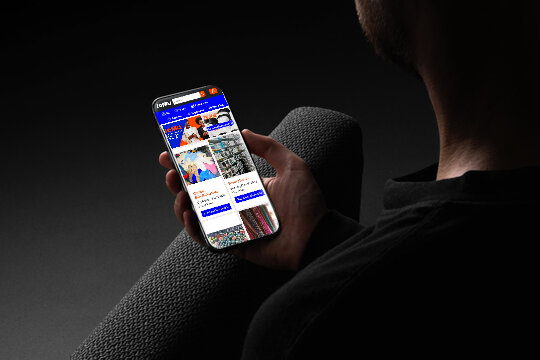

Hi, Get to know about JoMu.
What is JoMu?
JoMu is a business to business (B2B) wholesale marketplace platform designed to connect businesses and facilitate the buying, selling, and collaboration of products and services. JoMu serves as a hub where businesses can seamlessly engage in trade and partnerships. JoMu was started in 2024.
Vision

Facilitate businesses across Africa through reliable, trustworthy, and digitally enhanced wholesale trade.
Getting started with JoMu.
New to JoMu? Getting started is easy. Just follow the steps below to create your account and set up your business profile to begin your journey to success.
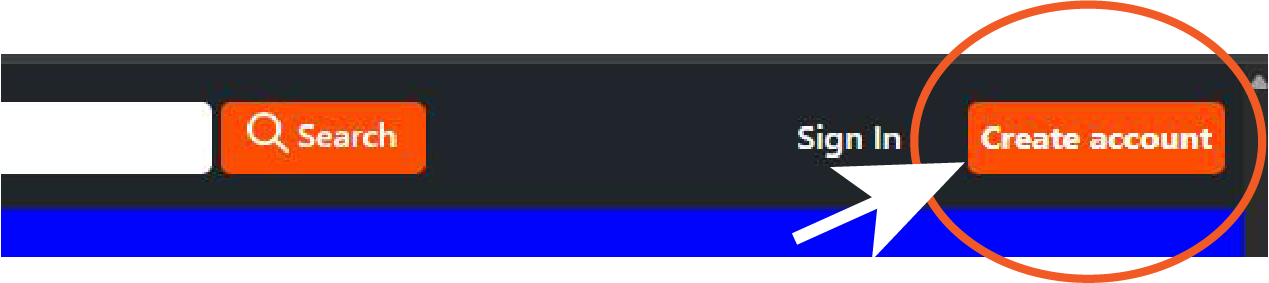
Step 1. Navigate to "Create Account".
On any page with a navigation bar, locate and click the "Create Account" button at the top right.
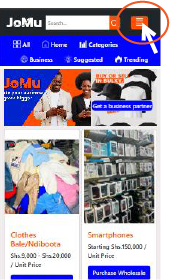
Step 1. Open the
Navigation Menu.
On any page, with a navigation bar, tap the menu icon at the top-right corner of your
screen
(the navbar toggler).
Step 2. Fill
in
required information
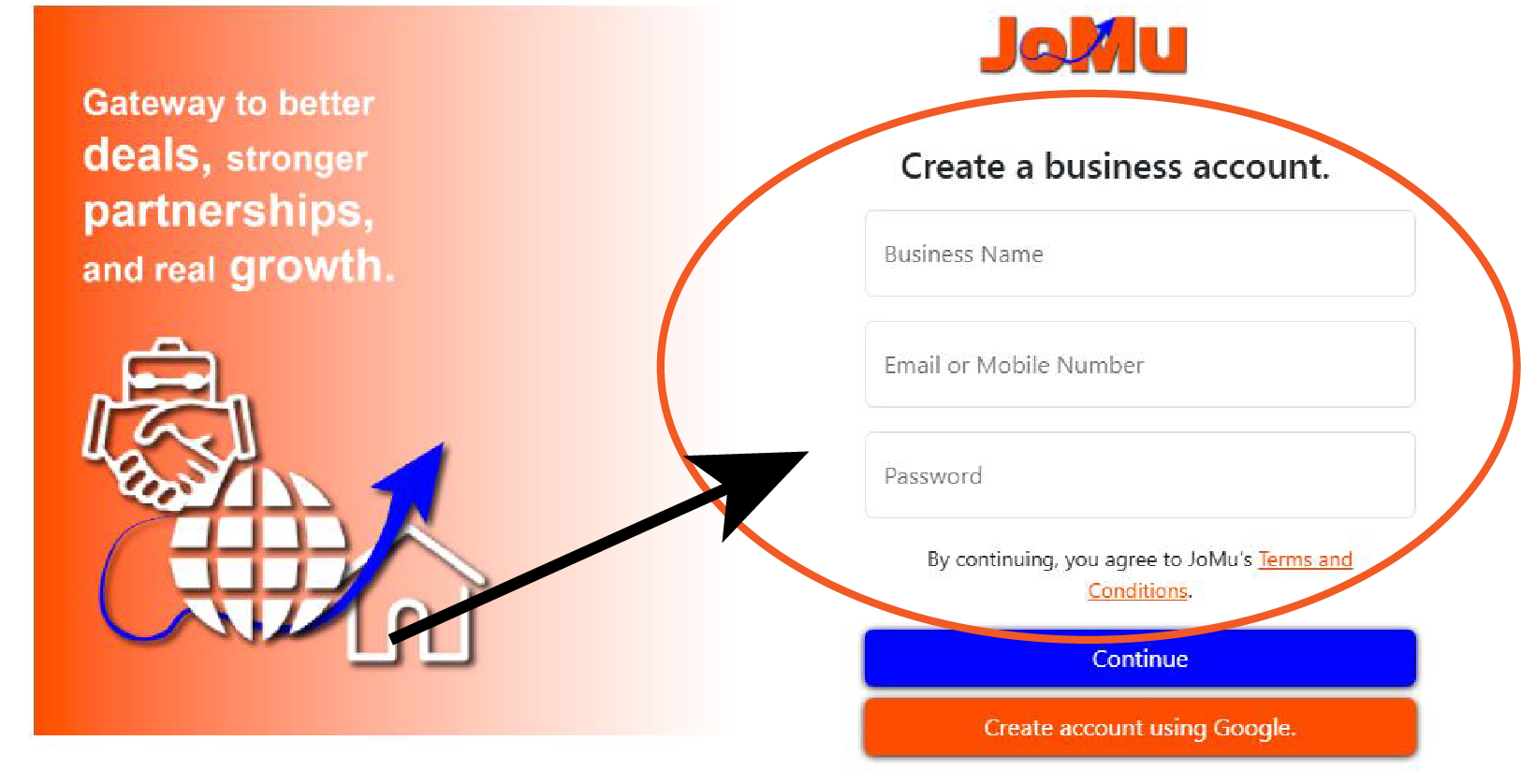
A registration form will appear. Enter the necessary details such as your business name,
email
address / phone number, and password.
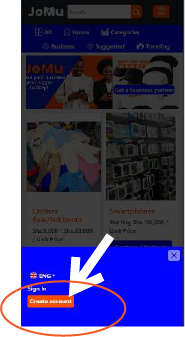
Step 2. Tap
"Create Account".
Once the menu (drawer/offcanvas) slides in from the bottom, tap the "Create Account
button to
begin registration.
Step 3. Click
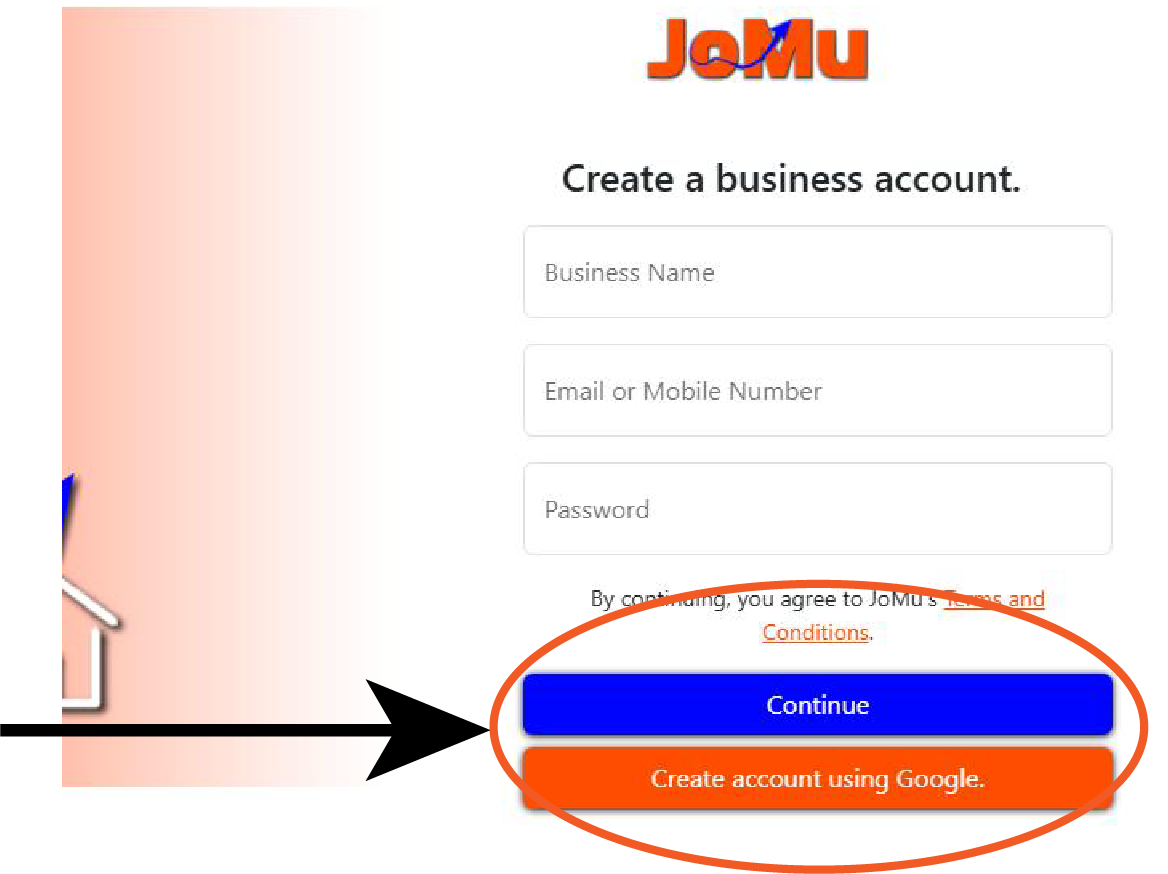
"Continue".
Once all fields are filled in, click the "Continue" (blue background) button to proceed.
Otherwise, you can
simply create your business account using Google (orange background button).
Step 3. Fill
in
required information
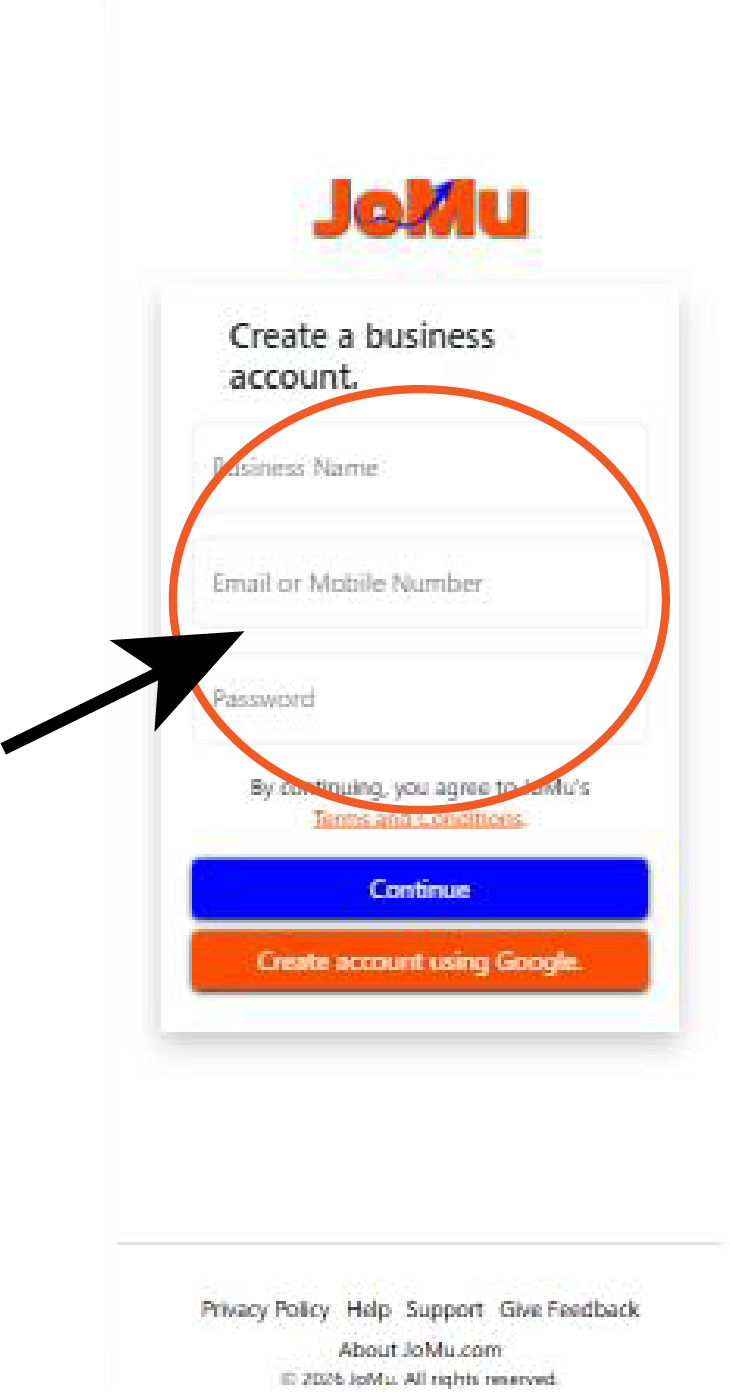
A registration form will appear. Enter the necessary details such as your business name,
email
address / phone number, and password.
Step 4. Click
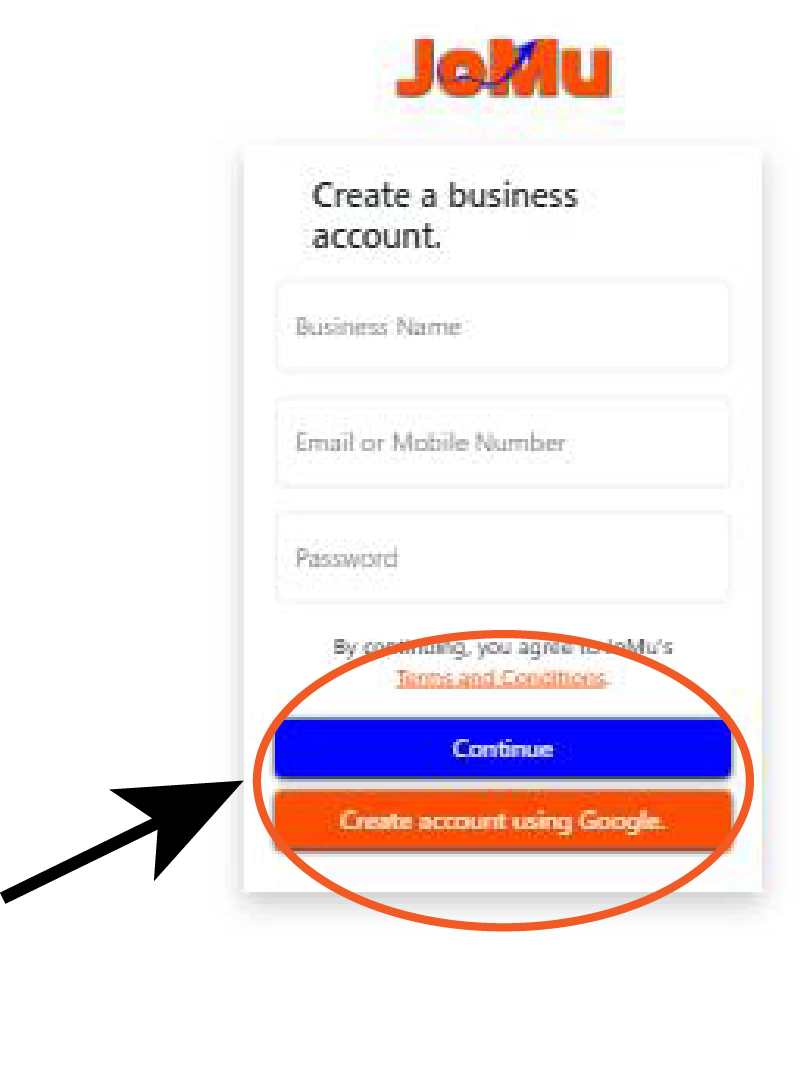
"Continue".
Once all fields are filled in, click the "Continue"(blue background) button to proceed.
Otherwise, you can
simply create your business account using Google (orange background button).
Step 4.
Set Up
your Profile.
After account creation, you'll be required to complete your profile. Set your
business
biography and add other
relevant information.
Step 5. Set
Up
your Profile.
After account creation, you'll be required to complete your profile. Set your
business
biography and add other
relevant information.
You're
In!
Your account is now active. Explore features, post listings, and connect with other
businesses.
On any page, with a navigation bar, tap the menu icon at the top-right corner of your screen (the navbar toggler).
A registration form will appear. Enter the necessary details such as your business name, email address / phone number, and password.
Once the menu (drawer/offcanvas) slides in from the bottom, tap the "Create Account button to begin registration.
Once all fields are filled in, click the "Continue" (blue background) button to proceed. Otherwise, you can simply create your business account using Google (orange background button).
A registration form will appear. Enter the necessary details such as your business name, email address / phone number, and password.
Once all fields are filled in, click the "Continue"(blue background) button to proceed. Otherwise, you can simply create your business account using Google (orange background button).
After account creation, you'll be required to complete your profile. Set your business biography and add other relevant information.
After account creation, you'll be required to complete your profile. Set your business biography and add other relevant information.
Your account is now active. Explore features, post listings, and connect with other businesses.